Microsoft have pushed out a number of updates in their April 2026 release, and one of them has been a long time coming – An update to how Windows handles RDP connectivity
The main change for this update is to fix CVE-2026-26151 (RDP Spoofing), but they have taken the opportunity to refresh a number of items associated with the RDP connection capability and user messaging to make users more aware of what’s happening when an RDP session is established
What is RDP?
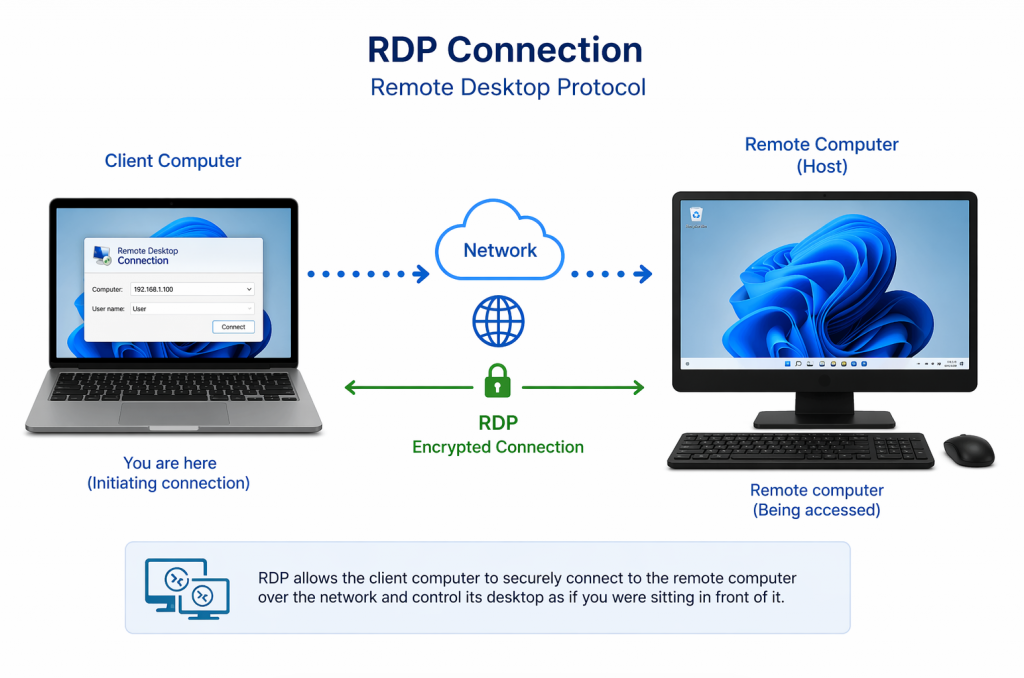
RDP – Remote Desktop Protocol – allows you to connect from one PC to another over the network / Internet as if you were sat in front of the remote machine – You see the remote machines desktop, can access its files, any attached devices such as printers, webcams, etc. and control the device through your keyboard and mouse.
The protocol was developed by Microsoft back in the days of Windows NT 4.0, and was initially released as a part of the Windows Terminal Services application. Terminal Services was rebranded as RDS (Remote Desktop Services) with the release of Windows Server 2008 R2 and since the release of Windows XP, every professional version of Windows has shipped with RDS.
Home versions of Windows do not ship with RDS, so cannot host an RDP session, but can connect as a client via RDP to a remote system. This is the vulnerability Microsoft are addressing with this update.
If you require the ability to host RDP sessions on a Windows Home edition PC, you would need to use a 3rd-party application such as TeamViewer, or use Google Chrome Remote Desktop.
In addition to Microsoft’s RDP, there are a number of open-source variants. Unix include FreeRDP for *Nix devices such as Ubuntu, or Fedora, etc. There is also the highly popular neutrinolabs xrdp service that allows connectivity between Windows, Linux, and even Android & iOS systems.
Cybercrime use of RDP
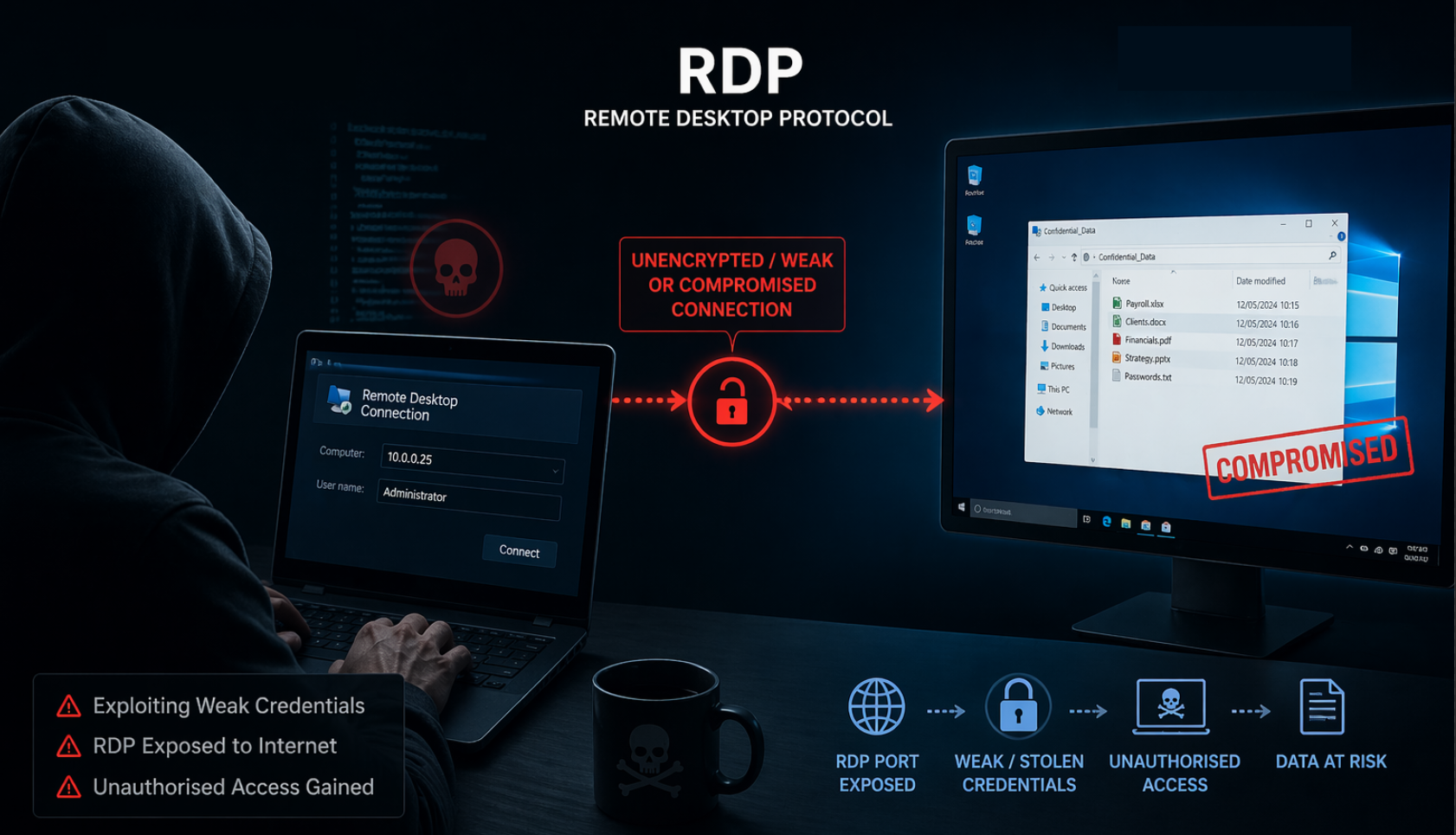
Because of the capabilities offered by an RDP session, it is highly targeted by cyber criminals and various dark web forums regularly offer compromised RDP sessions or credentials for criminals to use and abuse.
Some accounts are simply used as access points to allow criminals to utilise the victim network as a staging-post for attacks on other networks to hide their true identity & location, whereas other RDP sessions are used as legitimate access points into the victim network.
A cursory search for RDP on shodan.io returns thousands of RDP sessions available – many with the Administrator account being offered.
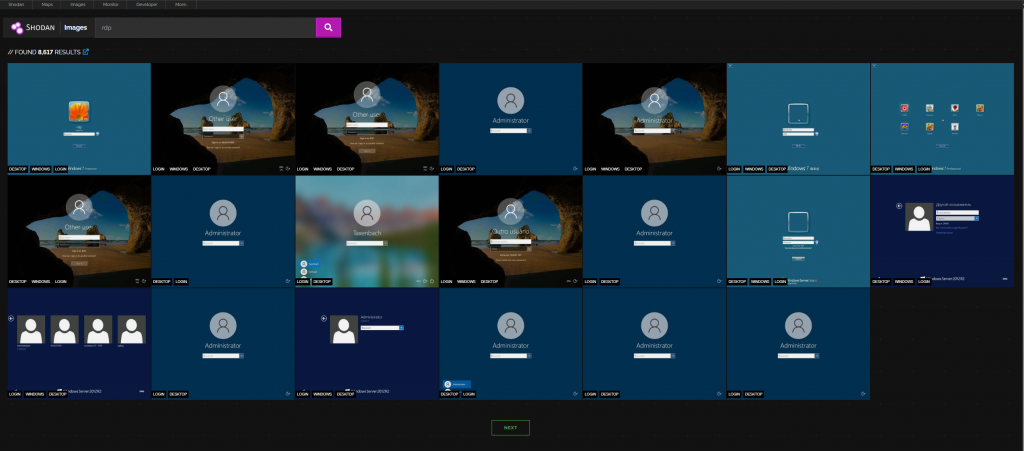
So whilst RDP is a highly useful protocol, it comes with great risk if it is not secured properly
In other cases, attackers set up RDS servers in their own networks, and trick users into starting RDP sessions to those servers, thus granting them access to any shared resources on the victim device.
The CVE mentioned above is described as Insufficient ui warning of dangerous operations in Windows Remote Desktop allows an unauthorized attacker to perform spoofing over a network.
But what does this mean?
When an RDP connection is made, the user creating the session to the remote server has the ability to launch the session as-is or save the configuration of the session as a file for re-use, or even distribute it to others.
These RDP files can be disguised as other files and sent to unwitting victims as part of a phishing campaign. If the victim clicks the file, the RDP connection will be silently established to the attackers remote service, thus sharing its resources with the attacker.
How to create a Windows RDP session
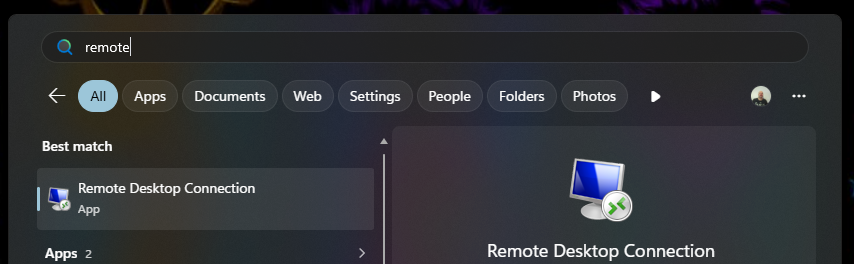
To create an RDP session to a remote server, on the client device, click the Windows start button and type Remote Desktop, this will allow you to launch the remote desktop application
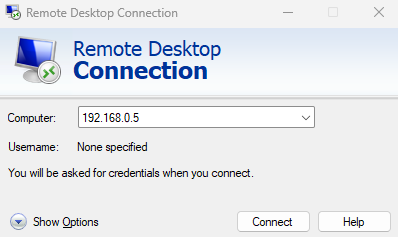
In the resulting pop-up dialogue box, enter either the IP address, hostname, or Fully Qualified Domain Name of the device you wish to connect to.
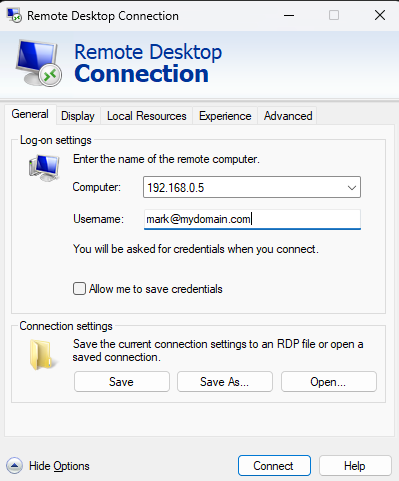
To specify the username, click Show options and then enter the username of the account you wish to use for the connection.
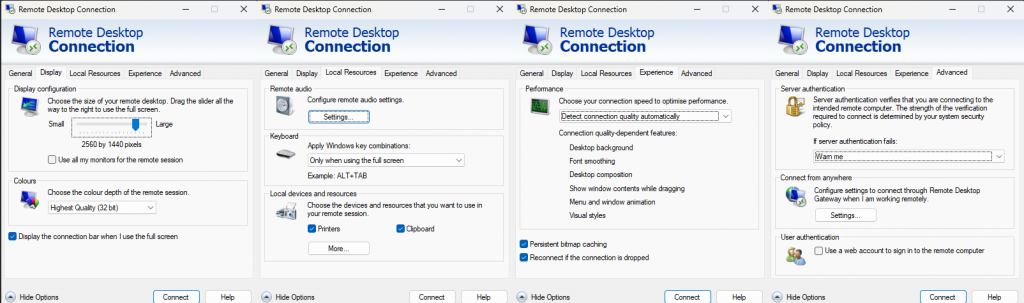
These settings will be enough for the connection to be created. However, if you want to configure things like screen resolution, or peripheral access, etc. Then you can use the tabs along the top of the dialogue box.
As mentioned before, at this point, the user can simply launch the RDP session by clicking connect, or they can save the settings as an RDP file.
If you save the settings as an RDP file, the file which is created is a simple text file containing a series of variables and associated data
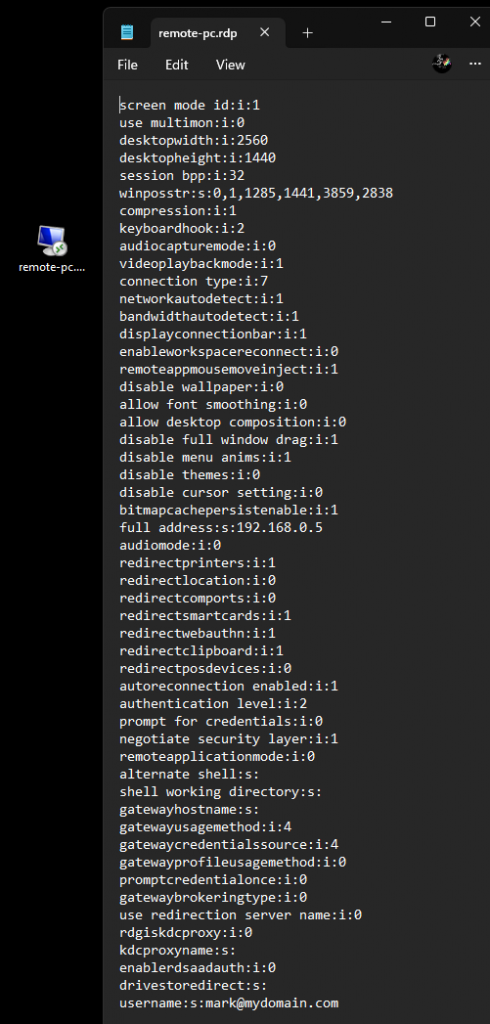
Each entry is structured with the variable name, the variable data type (i=integer, s=string), followed by the variable data. E.G.
username:s:mark@mydomain.comBecause this data is created as a text file, it can be linked to a batch file, or PowerShell script, etc. for automatic execution when clicked by an unwitting victim – hence the CVE mentioned above about RDP spoofing.
An attacker can build the RDP file with the credentials to allow the victim to connect to their server with all the resources of the client device shared with the server – thus allowing the attcker access to sensitive data on the victims machine
CVE-2026-26151 update
With the new update, when a user activates an RDP file, a warning message will be displayed explaining what the file will do, and what the potential risks are
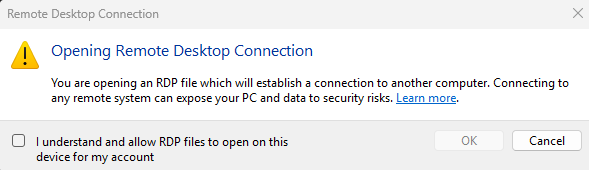
In addition to this new message, when the user accepts the warning and proceeds to connect, a new dialogue box will display that gives the user options to override any settings in the RDP file to allow/deny access to local resources – note that these settings only apply to this session – they are not saved for repeat sessions.
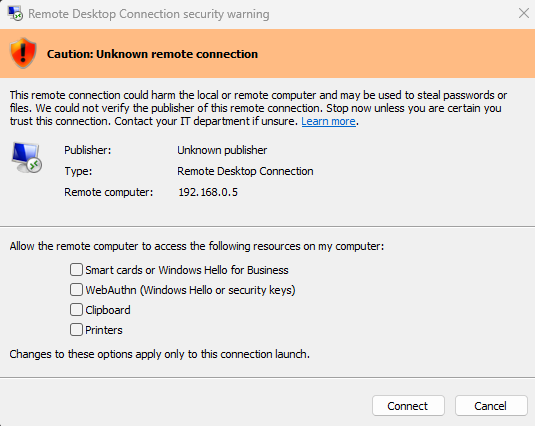
Additional to this, the message at the top of the dialogue box also makes the warning more obvious that the connection could not be verified as the RDP file being used does not have a valid digital signature
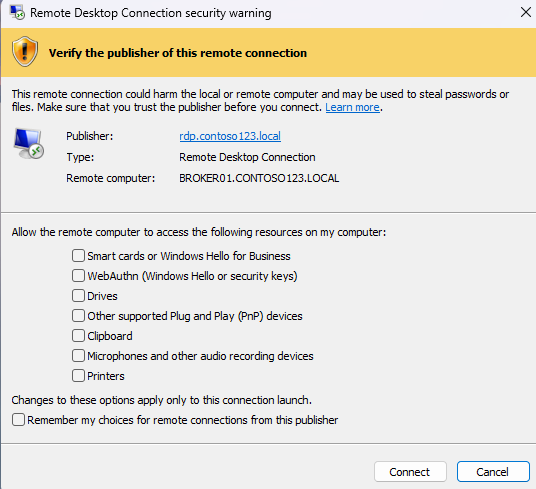
If the RDP file is signed by a legitimate, trusted publisher, the dialogue box will show different options, along with a hyperlink to view the certificate used for signing the file
If the file is trusted, then the user has the option to remember the allow/deny settings for future connections.
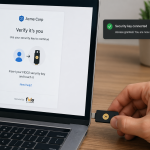
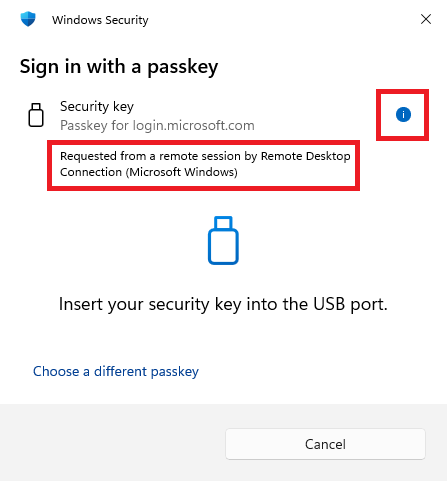
As an additional security update, if a victim unwittingly accepts an RDP connection and the attacker then attempts to access the WebAuthn capability (e.g. Windows Hello , or security keys), the dialogue box will identify the access attempt as coming from an RDP session.
As such if the victim isn’t expecting such an action, they should not comply with the request, and to ensure the RDP session is terminated they should immediately log-off & shut down the PC to disconnect the unauthorised session.
Post 79 – 22/04/2026