
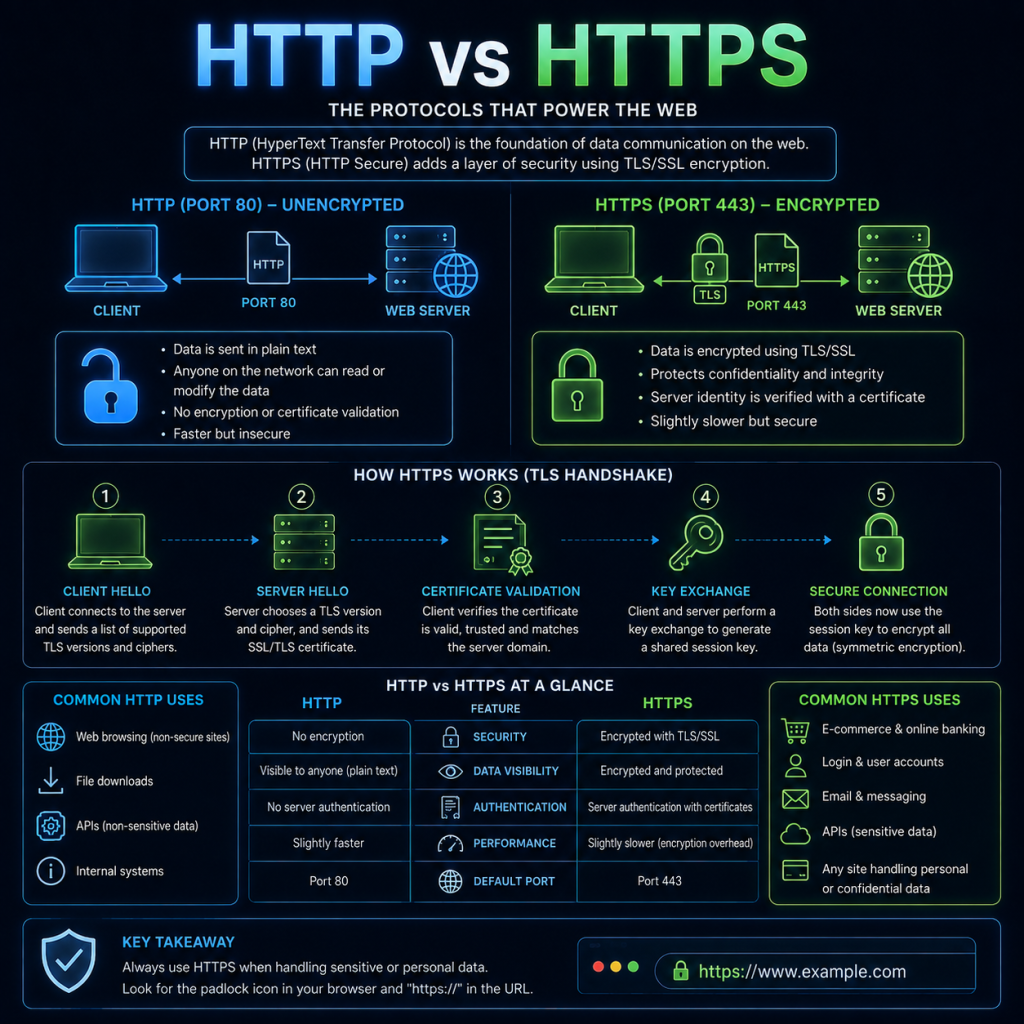
HTTP (HyperText Transfer Protocol) is the protocol that web browsers and servers use to exchange data. Every time you load a webpage, your browser is using HTTP (or its secure counterpart, HTTPS) to request the page’s content and receive it back from the server.
How HTTP works
HTTP follows a simple request/response model. The client (usually a web browser) sends a request to a server, and the server sends back a response.
- The client opens a TCP connection to the server, typically on port 80 (or port 443 for HTTPS).
- The client sends an HTTP request, specifying what it wants (e.g. a particular page or image) and how it wants it (the method).
- The server processes the request and sends back an HTTP response, which includes a status code and, usually, the requested content.
- The connection may then be closed, or kept open to handle further requests (see “Persistent connections” below).
HTTP methods
The method tells the server what kind of action the client wants to perform. The most common methods are:
- GET: Requests data from the server, such as a webpage or image. GET requests should not change anything on the server.
- POST: Sends data to the server, such as a submitted form. Often used to create something new (e.g. a new user account).
- PUT: Sends data to the server to update an existing resource, replacing it entirely.
- PATCH: Similar to PUT, but used to apply a partial update to a resource rather than replacing it entirely.
- DELETE: Requests that a resource be removed.
- HEAD: Identical to GET, but the server only returns the headers, not the actual content — useful for checking if a resource exists or has changed without downloading it.
- OPTIONS: Asks the server what methods are supported for a particular resource.
HTTP headers
Both requests and responses include headers — additional metadata sent alongside the main content. Some common examples:
- Host: Tells the server which website is being requested (since one server can host multiple sites).
- User-Agent: Identifies the browser or application making the request.
- Content-Type: Describes the format of the data being sent (e.g.
text/html,application/json). - Cookie / Set-Cookie: Used to store small pieces of data on the client, often for maintaining login sessions.
- Cache-Control: Instructs the browser or intermediate servers on how long content can be cached before it needs to be re-requested.
HTTP status codes
Every HTTP response includes a three-digit status code indicating the result of the request. These are grouped into five classes:
- 1xx – Informational: The request was received and is being processed. Rarely seen directly by users.
- 2xx – Success: The request was successfully received, understood, and processed. The most common is 200 OK.
- 3xx – Redirection: Further action is needed to complete the request, usually because the resource has moved. 301 Moved Permanently and 302 Found are common examples.
- 4xx – Client error: The request contains an error on the client’s part. 404 Not Found (the resource doesn’t exist) and 403 Forbidden (access denied) are the most familiar.
- 5xx – Server error: The server failed to fulfil a valid request. 500 Internal Server Error is the most common.
Statelessness and cookies
HTTP is a stateless protocol — by default, the server has no memory of previous requests from the same client. Each request is treated independently.
This creates a problem for things like login sessions, where a website needs to remember who you are as you move between pages. The solution is cookies — small pieces of data the server asks the browser to store (via the Set-Cookie header) and send back with every subsequent request (via the Cookie header). This is how a website “remembers” that you’re logged in as you navigate around it.
Persistent connections
Early versions of HTTP opened a new TCP connection for every single request, which was slow, since setting up and tearing down a connection has overhead. Modern HTTP (from HTTP/1.1 onwards) supports persistent connections, allowing the same TCP connection to be reused for multiple requests, significantly improving performance — especially for pages that need to load many resources (images, stylesheets, scripts) from the same server.
HTTPS: adding encryption
Plain HTTP sends all data — including anything typed into a form, such as a password — as unencrypted, readable text. Anyone able to intercept that traffic (for example, on a shared Wi-Fi network) can read it directly.
HTTPS (HTTP Secure) solves this by wrapping HTTP inside TLS (Transport Layer Security), encrypting the connection between client and server before any HTTP data is exchanged. HTTPS uses port 443 by default, rather than HTTP’s port 80.
The TLS handshake
When a browser connects to an HTTPS website, a “handshake” takes place before any actual webpage data is sent:
- The client and server agree on which version of TLS and which encryption method (cipher suite) to use.
- The server presents its digital certificate, which contains its public key and proves its identity.
- The client verifies the certificate is valid and trusted (see below).
- The client and server use the server’s public key to securely agree on a shared secret key, which is then used to encrypt all further communication for the rest of the session.
Once this handshake is complete, all HTTP data — the request, the response, headers, cookies — is encrypted, so anyone intercepting the traffic sees only meaningless encrypted data.
Certificates and the chain of trust
A digital certificate is issued by a Certificate Authority (CA) — a trusted organisation that verifies a website genuinely belongs to who it claims before issuing a certificate for it. Well-known CAs include Let’s Encrypt, DigiCert, and Sectigo.
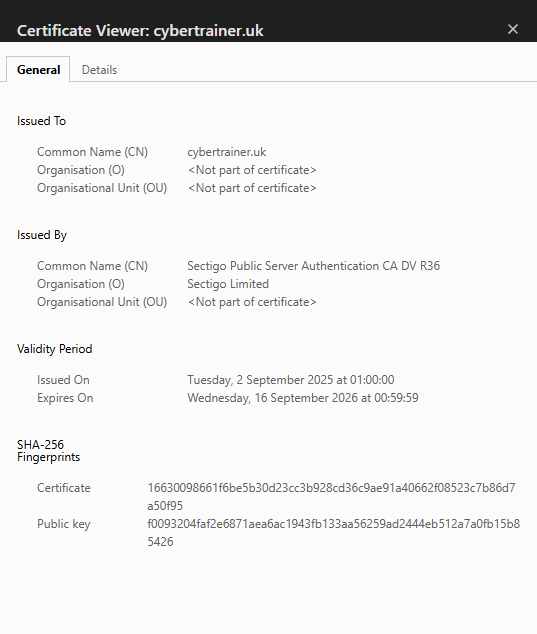
Your browser comes pre-installed with a list of CAs it trusts. When a website presents its certificate, the browser checks that it was signed by a CA on that trusted list (or by an intermediate certificate that chains back to one). If it was, the browser considers the site’s identity verified and shows the padlock icon.
It’s worth being clear about what that padlock actually means: it confirms the connection is encrypted, and that the certificate was issued to whoever controls that domain name. It does not mean the website is trustworthy, safe, or legitimate — a scam site can obtain a perfectly valid HTTPS certificate for its own domain just as easily as a genuine one can.
Checking a certificate manually
You can inspect a website’s certificate directly from the command line using OpenSSL:
openssl s_client -connect cybertrainer.uk:443 -servername cybertrainer.ukThis opens a connection and displays the certificate chain, including the issuing CA, validity dates, and the domain(s) the certificate covers. Most browsers also let you view this information by clicking the padlock icon in the address bar.
HTTP/HTTPS and security
Because HTTP itself has no concept of encryption or identity verification, several well-known attack techniques specifically target it:
Man in the Middle (MiTM) attacks are far more effective against plain HTTP traffic, since an attacker who can intercept the connection can read and even modify the data in transit without either party noticing. HTTPS doesn’t make MiTM attacks impossible, but it does mean the attacker would need to present a valid, trusted certificate for the site being impersonated — something they can’t normally do without either compromising a CA or tricking the victim into trusting a fake certificate.
Cookie theft / session hijacking is another risk on unencrypted connections — since cookies (including session cookies that keep you logged in) are sent as plain text over HTTP, anyone intercepting the traffic can steal that cookie and impersonate the logged-in user without ever needing a password.
SSL stripping is a technique where an attacker intercepts a connection and silently downgrades it from HTTPS to HTTP, hoping the victim doesn’t notice the missing padlock. Modern browsers and a mechanism called HSTS (HTTP Strict Transport Security) — where a website tells the browser to always use HTTPS for future visits — help defend against this.
It’s also worth remembering that HTTPS protects data in transit, not the server or the website’s code itself — a site can be fully HTTPS and still be running vulnerable software, storing passwords insecurely, or actively hosting phishing content. This ties in with the Man in the Middle and Phishing pages elsewhere on this site.