
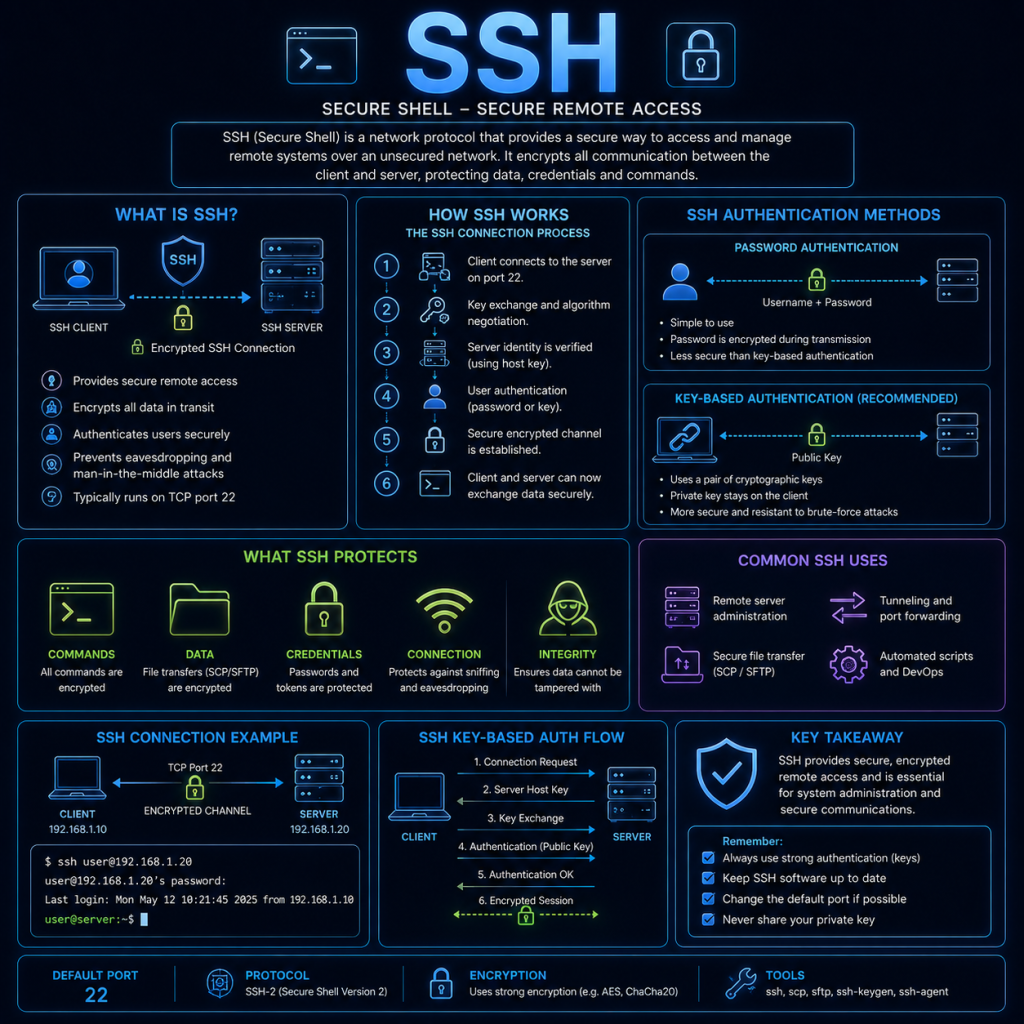
SSH (Secure Shell) is a protocol used to securely access and manage a device over a network — most commonly to get a command-line session on a remote computer, but also to transfer files or forward other traffic through an encrypted connection.
SSH was designed as a secure replacement for older, insecure protocols like Telnet and rlogin, which sent everything — including usernames and passwords — as unencrypted, readable text across the network.
How SSH works
When an SSH client connects to a server (usually on port 22), the two sides go through a process to establish a secure, encrypted channel before any commands or data are exchanged:
- Connection & version negotiation: The client connects to the server, and both sides confirm which version of the SSH protocol they support.
- Key exchange: The client and server use a key exchange algorithm (such as Diffie-Hellman) to agree on a shared secret, without that secret ever being sent across the network in a form an eavesdropper could use. This shared secret is used to encrypt everything that follows.
- Server authentication: The server proves its identity to the client using its own host key — a public/private key pair unique to that server (see “Host keys” below).
- Client authentication: The client then proves its identity to the server — typically via a password or an SSH key pair (see below).
- Session established: Once authentication succeeds, an encrypted channel is open, and the client can run commands, transfer files, or forward other traffic through it.
Everything from this point on — the commands you type, the output you see, and any data transferred — is encrypted, so anyone intercepting the traffic sees only unreadable ciphertext.
Authentication methods
SSH supports two main ways for a client to prove its identity to the server:
- Password authentication
The simplest method — the client sends a username and password, which the server checks against its own records. This is easy to set up, but has some downsides: passwords can be guessed, reused across services, or captured by keylogging malware on the client device. It’s also the method targeted by brute-force login attempts against Internet-facing SSH servers.
- Key-based authentication
A more secure alternative, and the generally recommended approach. The user generates a key pair — a private key (kept secret, stored only on the client) and a public key (which is safe to share and gets copied onto the server).
To authenticate, the server issues a cryptographic challenge that can only be answered correctly by whoever holds the matching private key. Crucially, the private key itself is never sent across the network — only proof that the client possesses it. This makes key-based authentication resistant to both password-guessing and network interception, since there’s no password to guess or capture in the first place.
Private keys can also be protected with a passphrase, adding a second layer of protection in case the key file itself is ever stolen.
Host keys
Just as the client proves its identity to the server, the server also proves its identity to the client — using its own host key.
The first time you connect to a new SSH server, your client will typically show a message like this, displaying the server’s host key fingerprint and asking you to confirm you trust it:
The authenticity of host 'cybertrainer.uk (203.0.113.10)' can't be established.
ED25519 key fingerprint is SHA256:xxxxxxxxxxxxxxxxxxxxxxxxxxxxxxxxxxxxxxxxxxx.
Are you sure you want to continue connecting (yes/no)?
Once accepted, that fingerprint is stored locally (in ~/.ssh/known_hosts on Linux/macOS). On every future connection, the client checks the server’s key against this stored value. If it ever changes unexpectedly, the client will refuse to connect and show a strong warning — this is an important security feature, since a sudden change could mean the server was rebuilt, or it could mean someone is attempting to impersonate the server (see “SSH and security” below).
Common SSH usage
The basic syntax to connect to a remote server is:
ssh username@hostnameFor example:
ssh admin@cybertrainer.ukSome other commonly used options:
-p <port>: Connect on a non-default port (useful since many administrators move SSH off port 22 to reduce automated scanning traffic).-i <path>: Specify a particular private key file to use for authentication.-L: Set up local port forwarding, tunnelling a port on your local machine through the SSH connection to a destination reachable from the server.
SSH also underpins several other common tools:
- SCP (Secure Copy) and SFTP (SSH File Transfer Protocol) both use an SSH connection to transfer files securely between devices.
- Git commonly uses SSH (rather than HTTPS) to authenticate pushes and pulls to remote repositories using the same key-based authentication described above.
Generating an SSH key pair
On most systems, a new key pair can be generated with:
ssh-keygen -t ed25519This creates a private key (e.g. id_ed25519) and a matching public key (id_ed25519.pub) in your ~/.ssh directory. The public key then needs to be copied to any server you want to authenticate to — commonly done with the ssh-copy-id utility on Linux/macOS, or by manually appending it to the server’s ~/.ssh/authorized_keys file.
ed25519 is a modern, fast, and secure key type, and is generally recommended over the older (but still common) rsa key type for new keys.
SSH and security
SSH is widely relied upon for remote administration, which makes it a common target for attackers, and also a powerful defensive tool when configured correctly.
Brute-force attacks are extremely common against any SSH server exposed to the Internet — automated bots constantly scan for open port 22 and attempt large numbers of common username/password combinations. This is one of the strongest arguments for disabling password authentication entirely and relying on key-based authentication instead, since there’s no password for a brute-force attack to guess.
Host key changes should always be treated with suspicion rather than simply accepted and dismissed. While a changed host key is often innocent (a server rebuild, a reinstalled OS), it can also indicate a Man in the Middle attack, where a malicious device is intercepting the connection and presenting its own host key instead of the real server’s. Always verify out-of-band (e.g. by checking with the server’s actual administrator) if a host key warning appears unexpectedly for a server you’ve connected to before.
Exposed private keys are a serious risk — since a private key is the only thing standing between an attacker and full access to every server it’s authorized on, keys should always be protected with a strong passphrase, never committed to a public code repository, and rotated (replaced) if there’s any suspicion they may have been exposed.
Some other common hardening steps for SSH servers include:
- Disabling root login, forcing administrators to log in as a normal user and elevate privileges separately.
- Moving SSH to a non-default port to reduce automated scanning noise (a mild deterrent, not a real security control on its own).
- Using tools like Fail2ban, which automatically block IP addresses after repeated failed login attempts.
- Restricting which IP addresses can reach port 22 at all, via a firewall.
This ties in with the Password attacks and Man in the Middle pages elsewhere on this site.